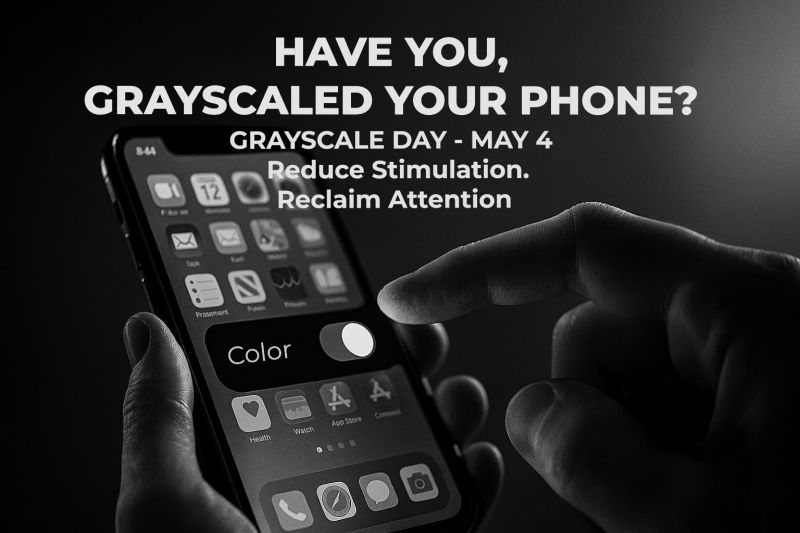
Grayscale Day encourages individuals to experience their smartphones without color‑driven attention hooks. Setting your phone display to black and white is a simple, reversible way to reduce visual stimulation, increase awareness of screen habits, and support healthier technology use.
Below are step‑by‑step instructions for both iPhone and Android users.
📱 iPhone (iOS)
Option 1: Through Settings
Open Settings
Tap Accessibility
Select Display & Text Size
Tap Color Filters
Turn Color Filters ON
Select Grayscale
Your screen will immediately switch to black and white.
Optional Shortcut (Recommended) To easily turn Grayscale on or off:
Go to Settings → Accessibility
Tap Accessibility Shortcut
Select Color Filters
Now you can toggle Grayscale by triple‑clicking the side button.
🤖 Android
(Steps may vary slightly by manufacturer and Android version)
Standard Method
Open Settings
Tap Accessibility
Select Color and Motion or Visibility Enhancements
Tap Color Correction
Turn Color Correction ON
Choose Grayscale
Alternative (Digital Wellbeing) Some devices also offer Grayscale via Digital Wellbeing & Parental Controls:
Enable Bedtime mode or Focus tools with grayscale enabled
✅ Why Go Grayscale?
Reduces compulsive scrolling
Lowers visual overstimulation
Increases intentional phone use
Supports mental wellbeing and focus
Grayscale Day is not about eliminating technology—it’s about using it more intentionally.
Go Gray. Gain Perspective. Promote Balance.
#GrayscaleDay #NationalGrayscaleDay #DigitalWellbeing #MentalHealthAwareness #ResponsibleTechnology #TAAF
How to Enable Grayscale on Your Phone In support of Grayscale Day — May 4